

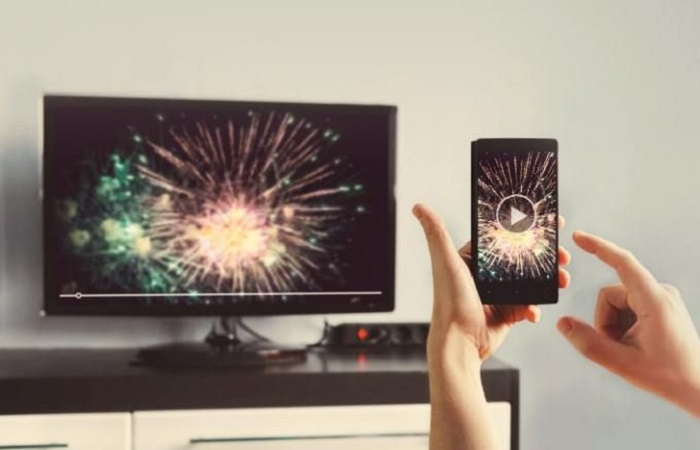
You think about watching the series you love the most, but remember that the files are in your notebook. So it would take a lot of work to get all the episodes onto the flash drive and then onto the TV. The boring situation, isn’t it?
Or would like to see the new movie that came out on Netflix, however, remember that your TV doesn’t have smart features. But, as there is a solution for everything (after all, we are in the Digital Age), it is possible to connect the notebook to the TV and watch your series and movies. No more flash drives or complaining about not having a smart TV.
In this article, you will find out how to connect your notebook to the TV in 4 ways (wired or wired). Now you can call friends and family to watch Netflix series on a bigger screen.
Enjoy the article until the end and find out how to connect your notebook to the TV without difficulties, with or without the aid of a wire.
How to connect the notebook to the TV (wireless)
If your TV is more up-to-date and has internet access, meaning smart features, the first step below will be perfect for you. But did you know that there’s also a way to connect your notebook to your TV wirelessly, even if your TV isn’t smart?
Below are two ways to do this without the need for cables.
Come on?
Connect the notebook to TV via wifi
Today, this is one of the fastest and easiest ways to connect your notebook to your TV.
To do this, first, enable your TV’s Wi-Fi and connect to the internet. Then, most of the time, just access the Windows mirroring menu to transmit the notebook screen to the TV.
So, you can use the TV as a monitor for simple tasks and see some photos with the family. However, for longer videos, such as movies, or for games, there may be a considerable delay in the response, and some crashes may occur. If that’s your case, we recommend taking a look at the Reviews website, which did a review of good TVs to play with.
Likewise, the above step-by-step and its result also apply to televisions that support Miracast and DLNA protocols. Windows also supports them and can mirror the screen on the TV.
Connect your notebook to your TV wirelessly with Chromecast
Another way to connect the notebook to the TV without having several cables strewn around the room is using Google Chromecast, the best known – and most effective – media streaming device.
With it, even if your TV is not smart, you can connect your notebook to it and watch series and movies on Netflix or Amazon Prime, as well as watch the best videos on YouTube. Yes, without needing a television with wi-fi. Chromecast, in short, turns any TV into a smart. You may also be interested in “Cable TV network” here Tv por Assinatura
First, you’ll have to connect Chromecast to your TV, usually via the HDMI input. That is, your TV necessarily needs to have this input. Then just turn on Chromecast and start configuring it.
Once that’s done, just mirror the Google Chrome tabs, your files, and videos that are on your notebook or computer desktop. You choose.
To mirror the notebook screen on the TV via Google Chrome, for example, do the following:
open the Google Chrome browser and click on the menu (three vertical dots in the upper right corner of the screen);
select the “Stream” option and then choose the content you want to stream using the “Sources” menu;
Finally, select which Chromecast you want to stream to – if you have others.
Finished!
You will now stream data from your notebook to Chromecast via Wi-Fi. And the latter will mirror your notebook screen on the TV.
How to connect the notebook to the TV (wired)
Now, if you have an HDMI cable or a VGA cable handy, you can also connect your notebook to the TV.
See how you can do this procedure.
Connect the notebook to the TV with an HDMI cable
An HDMI cable supports high-resolution audio and video, which can be ideal for watching movies and series by mirroring the screen on the TV.
However, for this to be effective, both the TV and your notebook need to have an HDMI input. If both devices are more up-to-date, chances are you won’t need to worry about that.
So, take the HDMI cable to connect the notebook to the TV and follow the steps below:
turn on the notebook and TV and connect them using the HDMI cable;
to finish, just select the correct HDMI input on your TV with the help of the remote control.
And it’s already over. After just two steps you can mirror your notebook screen on your TV. Simple, fast, and effective.
How to Connect Your Notebook to TV with VGA Cable
If your notebook is a bit old, you may also be able to connect it to the TV using a VGA cable. The TV, in turn, must also have a VGA port.
However, unlike HDMI, the VGA cable does not support audio. And the video, in turn, has a very low quality compared to HDMI. You must have a speaker with a separate audio cable.
To connect the notebook to the TV with the VGA cable, follow the step by step below:
connect the notebook to the TV using the VGA cable;
connect some device for audio output to the notebook, such as a speaker or headphones;
Turn on the TV and notebook;
To close with a golden key, select PC or RGB input on the TV using the remote control.
Ready! With this walkthrough, you’ll also be able to watch your movies and series on TV.
See how there are several ways to connect the notebook to the TV? Did you learn them all? Now, when you want to mirror your notebook screen on your TV – or if that aunt asks for help – you already know what to do!
Don’t forget to share this article on your social networks to help more people, ok? It’s your turn to give back!
How to make your money work for you?
Learning how to invest your money better and make good investment decisions in accordance with your personal planning is the only way to make your money work for you and achieve all your financial goals.


